Versions
- velero: v1.9.0
- gke: v1.25.6-gke.200
- velero helm charts: 2.30.1
- flux cd: 0.36.0
Import helm chart repository
- Create vmware-tanzu-helmrepo.yaml, add the following content and submit it to the git repository:
apiVersion: source.toolkit.fluxcd.io/v1beta2
kind: HelmRepository
metadata:
  name: vmware-tanzu
spec:
  interval: 30m
  url: <https://vmware-tanzu.github.io/helm-charts>
- Check if the helmrepo is working fine:
kubectl get helmrepository -A | grep vmware-tanzu. The output should be as follows:
flux-system vmware-tanzu <https://vmware-tanzu.github.io/helm-charts> 117d True stored artifact for revision 'eff1284a69fc7293ad2a4618c30d63ef6f486bd74ea3a8d3301866b899facdf6'
Install velero
- Create velero-release.yaml, add the following content and submit it to the git repository:
apiVersion: helm.toolkit.fluxcd.io/v2beta1
kind: HelmRelease
metadata:
  name: velero
spec:
  chart:
    spec:
      chart: velero
      sourceRef:
        kind: HelmRepository
        name: vmware-tanzu
        namespace: flux-system
      version: "2.30.1"
  interval: 1h
  maxHistory: 3
  values:
    backupsEnabled: false
    snapshotsEnabled: true # Enable VolumeSnapshotLocation
    deployRestic: true # If you need to use restic to back up PVC data, you need to enable this option
    restic: # It is recommended to increase the default resource limits, otherwise backup may fail due to insufficient resources
      resources:
        requests:
          cpu: 1000m
          memory: 2Gi
        limits:
          cpu: 2000m
          memory: 4Gi
    configuration:
      provider: gcp # Introduce GCP
      features: "EnableUploadProgress" # Enable upload progress

    initContainers: # Introduce GCP plugins
      - name: velero-plugin-for-gcp
        image: velero/velero-plugin-for-gcp:v1.4.1
        imagePullPolicy: IfNotPresent
        volumeMounts:
          - mountPath: /target
            name: plugins

    credentials:
      useSecret: false # We use workload identity

    serviceAccount:
      server:
        create: true
        name: velero
        annotations: # Use GKE's workload identity and remember to give GCS permissions
          iam.gke.io/gcp-service-account: <service-account-name>@<project-name>.iam.gserviceaccount.com

    rbac:
      create: true
      clusterAdministrator: true

    schedules: {}

    resources:
      requests:
        cpu: 100m
        memory: 500Mi
      limits:
        cpu: 1000m
        memory: 1000Mi
Wait for fluxcd to automatically deploy velero. If the following pod appears, the installation is successful:

Check if the CRD is created successfully:
kubectl get crd | grep velero. The output should be as follows: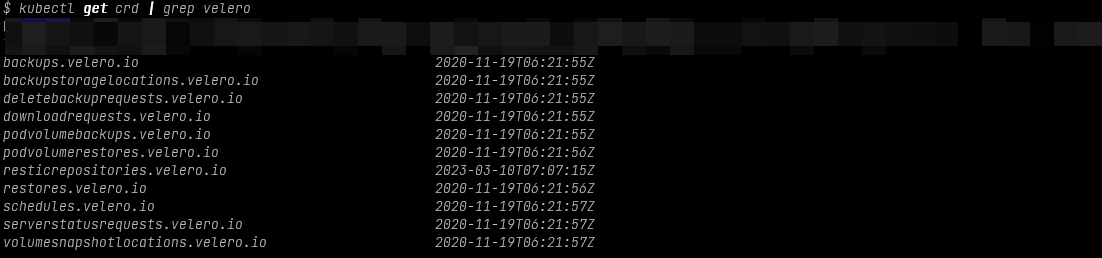
Test backup
- Create a test pod and PVC and deploy:
apiVersion: v1
kind: PersistentVolumeClaim
metadata:
  name: test-backup-volume-claim
  namespace: staging
spec:
  storageClassName: test-backup-storage-class
  accessModes:
    - ReadWriteOnce
  resources:
    requests:
      storage: 1Gi
---
apiVersion: v1
kind: Pod
metadata:
  name: test-backup
  namespace: staging
  labels:
    app: test-backup
spec:
  containers:
    - name: test-backup
      image: nginx
      volumeMounts:
        - mountPath: "/var/www/html"
          name: mypd
  volumes:
    - name: mypd
      persistentVolumeClaim:
        claimName: test-backup-volume-claim
- Write file data to
/var/www/htmlin the pod. - Create a backup plan:
apiVersion: velero.io/v1
kind: Schedule
metadata:
  name: test-backup
  namespace: velero
spec:
  schedule: "0 14 * * 1"
  template:
    includedNamespaces:
      - staging
    volumeSnapshotLocations: [default]
    storageLocation: default
    includedResources:
      - "*"
    labelSelector:
      matchLabels:
        app: test-backup
    snapshotVolumes: true
    defaultVolumesToRestic: true
    ttl: 168h # 7 days
- Create a backup based on the schedule:
velero backup create --from-schedule test-backup. The return value is as follows:
Creating backup from schedule, all other filters are ignored.
Backup request "test-backup-20230314070438" submitted successfully.
Run `velero backup describe test-backup-20230314070438` or `velero backup logs test-backup-20230314070438` for more details.
- Use
velero backup describe test-backup-20230314070438 --detailsto check the task status.